The Parts of Month-End Nobody Should Be Doing by Hand
The work that only happens when someone remembers
Look closely at any cash process and you will find two kinds of work in it. There is the work that has to be thought about — is this expense legitimate, why is this drawer short, should we still be buying from this supplier. And there is the work that is pure reflex: anything over five hundred goes to Dana, anything without a receipt after three days gets chased, on the first of the month someone opens a new reconciliation row.
The reflex work is not hard. It is just relentless, and it depends entirely on somebody remembering. Which means it happens reliably right up until the week that gets busy — and the week that gets busy is exactly the week you want the controls working.
Automations in CashSheet Workbooks exist for that second category. Not to make decisions, but to make sure the routine consequences of a decision actually happen. This is how they are put together, and — more usefully — how to tell what one did when it appears to have done nothing.
The shape: trigger, conditions, actions
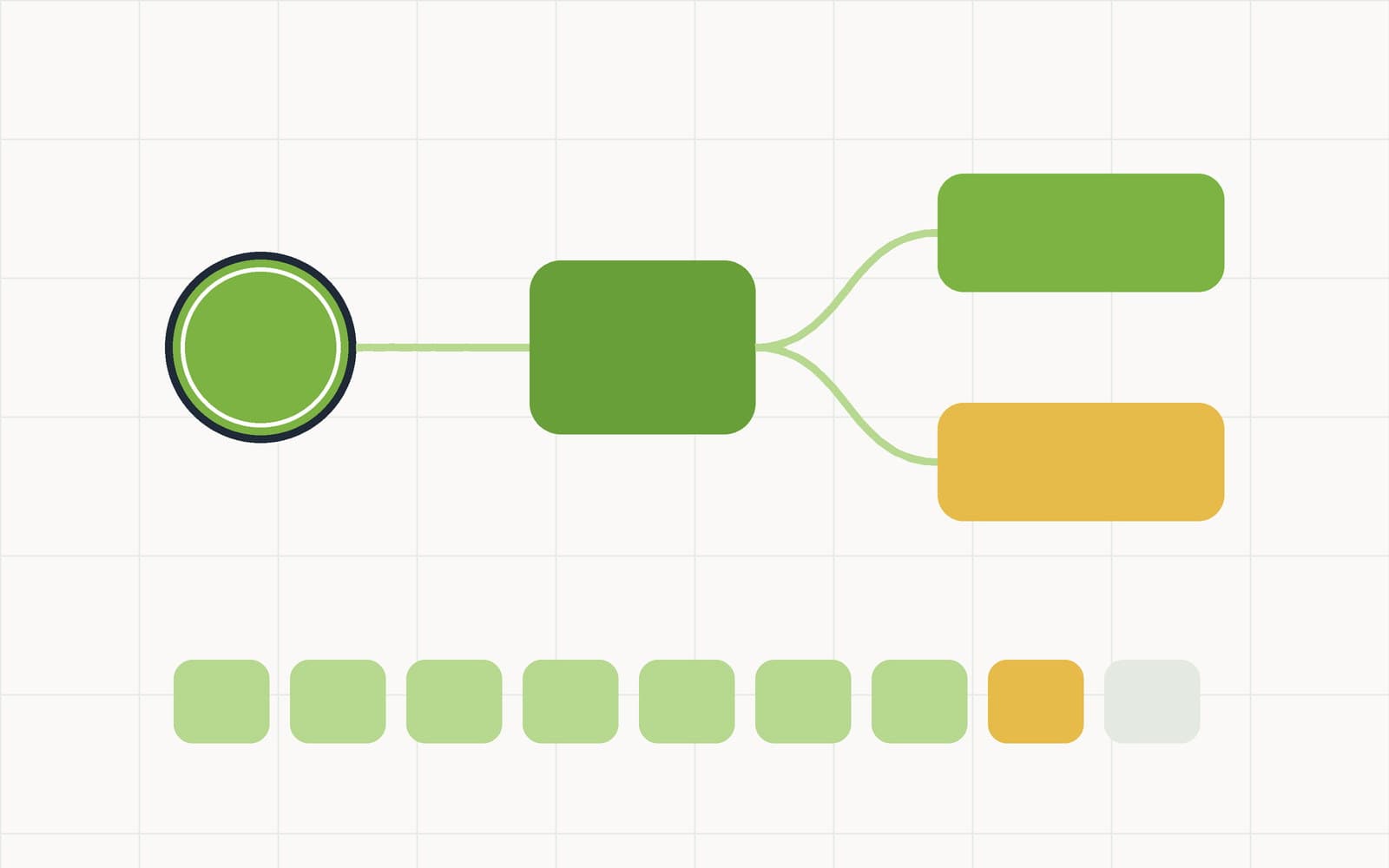
Every automation is three parts. Something happens, you narrow down when you care, and then something else happens.
Triggers
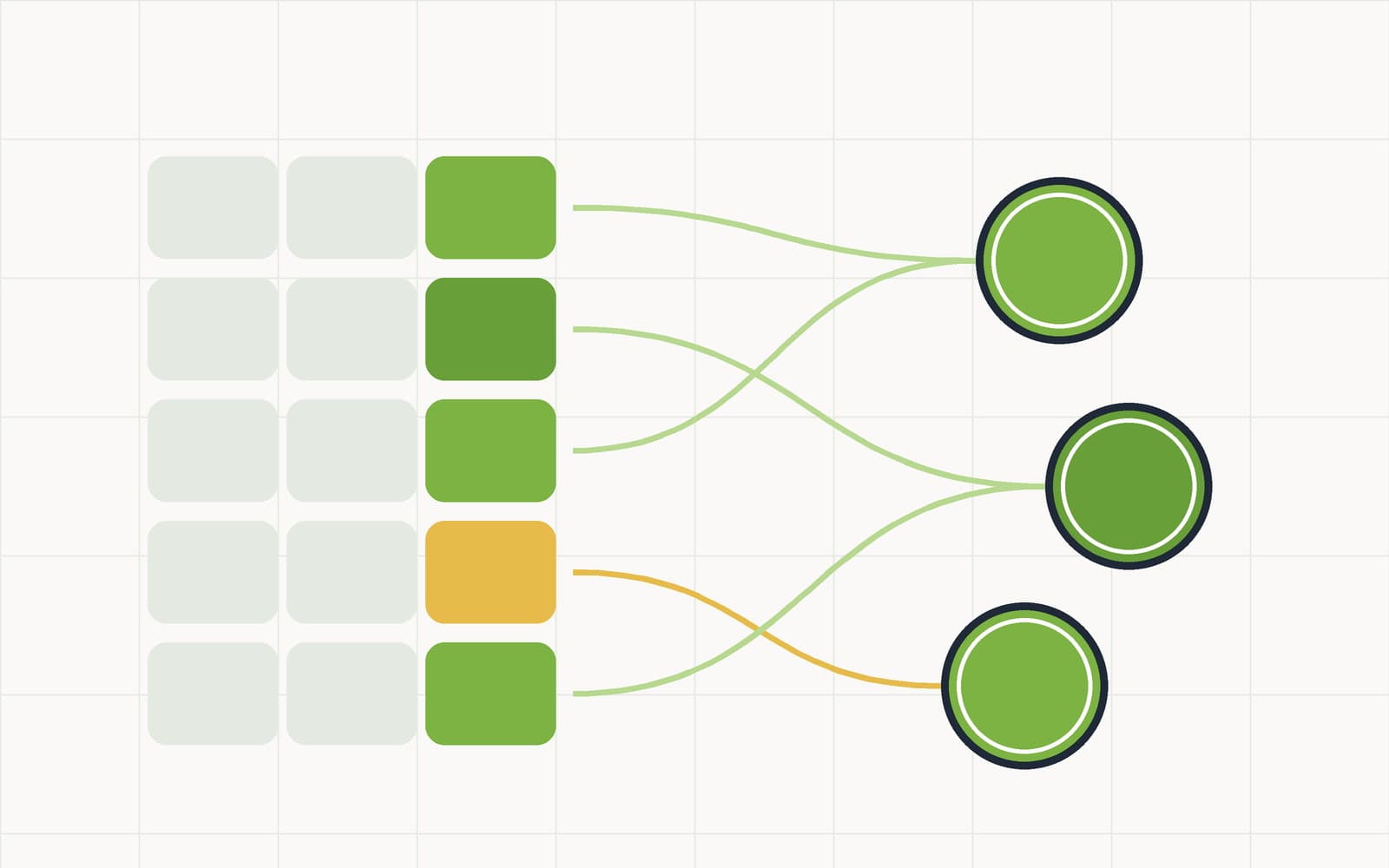
Four kinds, and choosing precisely between them prevents most of the noise people associate with automation:
- Row created — a row is added. Note what this covers: typed in the grid, created by another automation, posted via the API, submitted through a public form, or imported from CSV. An import fires one event per imported row, which is either exactly what you want or a surprise worth knowing about before you import three thousand historical entries.
- Row updated — any cell in a row changes. The blunt instrument.
- Column changed — one specific column changes. Tighter, and usually what you actually meant. If you care about Status, watch Status; do not watch the whole row and then filter.
- Schedule — daily, weekly or monthly, at a time you set. Runs whether or not anyone is signed in, which is the point. This is how period-end row creation and recurring reminders stop depending on a person being at a desk.
Conditions
A trigger can carry conditions so the actions only run when the row matches — row updated and Amount is greater than 500 and Status is Pending. Conditions use the same column, operator and value shape as filters, so if you can build the view you can build the condition. There is no second language to learn.
Actions
Three, and an automation can chain several, running in order:
- Update cell — write a value into a column of the triggering row. Stamp an approval date, flip a status, clear a field.
- Create row — add a row to any worksheet, with a field mapper that carries values across from the triggering row. This is how a submitted expense spawns a review task in a different sheet, already populated with the amount and the person.
- Webhook — POST the event as JSON to a URL you control. Only HTTPS URLs to public hosts are accepted. This is the escape hatch to everything else you run.
One constraint worth internalising: computed columns — formula, lookup and rollup — cannot be written directly by an update-cell action. They are computed, so there is nothing to write. If you want a computed value to change, change its inputs. This trips people up once and then never again.
Four automations worth building first
Abstract capability lists are easy to nod along to and hard to act on, so here are four that earn their keep in a cash workflow. Each is a trigger, a condition and an action.
1. Escalate the large ones. Trigger: row created on the petty cash log. Condition: Amount out greater than 500. Action: update cell — set Status to Needs approval. The row that needs a second look announces itself instead of waiting to be noticed at month-end. Pair it with an Unapproved over $500 saved view and the queue maintains itself.
2. Open the period. Trigger: schedule, monthly. Action: create row on the reconciliation worksheet, with the date mapped in. The blank row for the new month exists on the first, so the question "did anyone start this month's reconciliation" stops being a question.
3. Turn a submission into a task. Trigger: row created — from a public form, so the person submitting needs no account. Action: create row on a Review worksheet, field-mapped to carry the amount, the category and who submitted it. The form fills the log; the automation fills the queue.
4. Tell the other system. Trigger: column changed on Status. Condition: Status is Approved. Action: webhook to your accounting or notification endpoint. Workbooks does not need to be the last system in the chain to be the reliable first one.
The run log is the actual feature
Here is the part that separates automation you trust from automation you disable after a fortnight.
Every automation keeps a log of its recent runs — when it fired, what matched, whether each action succeeded, and the error message if one failed. The most recent fifty runs are retained per automation.
The value of that is diagnostic and specific. When an automation seems to be doing nothing, there are three completely different reasons, and they need three completely different fixes:
- It never fired. The trigger is wrong — you are watching row-updated when the change comes from an import, or watching the wrong column.
- It fired but conditions did not match. The trigger is right and the condition is too narrow. Your greater-than-500 rule is not catching the $500.00 entry, because 500 is not greater than 500.
- An action failed. The webhook endpoint returned an error, or the target worksheet is at its row cap.
Without a run log you cannot distinguish these, and so you guess. Guessing at automation is how people end up with four half-broken rules and a policy of not trusting any of them. The log turns a mystery into a reading task.
Limits, and what they actually stop
Automation runs are counted per calendar month: the Free plan includes 100 runs a month, Standard 2,000, and Premium and Enterprise are unlimited.
What happens at the ceiling matters more than the number. When a workspace exceeds its monthly allowance, further automations are skipped — and the skip is visible in the run log. Your data changes are never blocked. Rows still get created, cells still get edited, imports still land. The only thing that stops is the automated reaction to them.
That is the general principle across every limit in Workbooks: limits stop growth, never access. Nothing you have already created is locked, hidden or deleted, on any plan, at any ceiling. It is the difference between a capacity limit and a hostage situation, and it is worth checking for in any tool you are trusting with a financial record.
A practical note on the Free tier's hundred runs: an escalation rule on a busy petty cash log will not touch it, but a row-created automation on a worksheet that receives daily CSV imports absolutely will, because imports fire per row. If you plan to automate around imports, count the rows first.
Start with one rule
The failure mode with automation is not building too few — it is building eight at once, then having no idea which one produced the row you are looking at.
Build one. Give it a week. Read its run log at the end of that week, which takes about thirty seconds and tells you whether your conditions match reality. Then build the second.
The escalation rule is the right first one for most businesses, because it fails visibly: if large entries stop getting flagged, you notice immediately, which is exactly the property you want in the rule you are learning on.
Automations are included on every plan at app.cashsheet.com, and new workspaces currently start with three months of full access, unlimited runs included.